
What this connector does
Give Claude read-only access to your FG Funnels data
Read contacts, opportunities, transactions, calendar events and more — in plain language. Three things to know before you start:
It's read-only
It retrieves data. It can't create, edit or delete anything.
Locked to one account
Only the Location ID you enter is reachable. Nothing leaks between accounts.
Disconnect anytime
Turn it off whenever you like. Remove it in FG Funnels or in Claude in one click.
Before you start — you'll need
A FG Funnels account — the sub-account you want Claude to read
A Claude.ai account (free or paid) — or any MCP client
You'll need two values during setup that we'll walk through gathering in the next steps. First, is your Location ID, which already exists and can be copied from your FGF account settings. The second is a Private Integration Token, which you will create in your account settings.
Step 1 of setup
Find your Location ID
This tells the connector which sub-account to read. It lives in your FG Funnels settings.
1
Sign in to FG Funnels
2
Switch to the sub-account you want Claude to read
3
Go to
Settings → Business Profile4
Copy the Location ID — it looks like
abc123XYZ…Keep it handy — you'll paste it into Claude in the last step.
I've copied my Location ID
Step 2 of setup
Create a Private Integration Token
This is the key Claude uses to read your data. You choose exactly what it can see.
1
Go to
Settings → Private Integrations2
Click Create new integration and name it
Claude — read only3
Grant read scopes for the data you want Claude to see (recommended set below)
Recommended read scopes
Contacts
View Contacts · View Custom Fields
Conversations
View Conversations · View Conversation Messages
Opportunities
View Opportunities
Calendars
View Calendars · View Calendar Events
Payments
View Payment Orders · View Payment Transactions
Locations & forms
View Locations · View Forms
Social media
View Posts · View Accounts · Statistics (read)
Email templates
View Email Templates
Blogs
List · Posts · Authors · Categories (read)
Skip any category you don't need. Write scopes are ignored by the connector even if granted.
4
Save, then copy the token — it starts with
pit-. You won't see it again, so save it somewhere safe now.I've saved my Private Integration Token
Step 3 of setup
Add the connector in Claude
Now bring your two values over to Claude. This is the last step.
In Claude.ai (web)
1
Open claude.ai. In the left menu look for a briefcase icon that will say Customize when you hover over it. Click
Customize → Connectors2
Inside the top right corner of the Connectors panel, click
+ → Add custom connector3
Give the connection a clear name like FG Funnels MCP - Read Only and paste this into the MCP Server URL field:
Connector URL
Note: You do not need to enter any Advanced Settings like OAuth Client ID or OAuth Client Secret. Ignore those.
https://mcp.fgfunnels.com
4
Click Connect. A branded FG Funnels page opens — paste your Location ID and Private Integration Token, then Connect.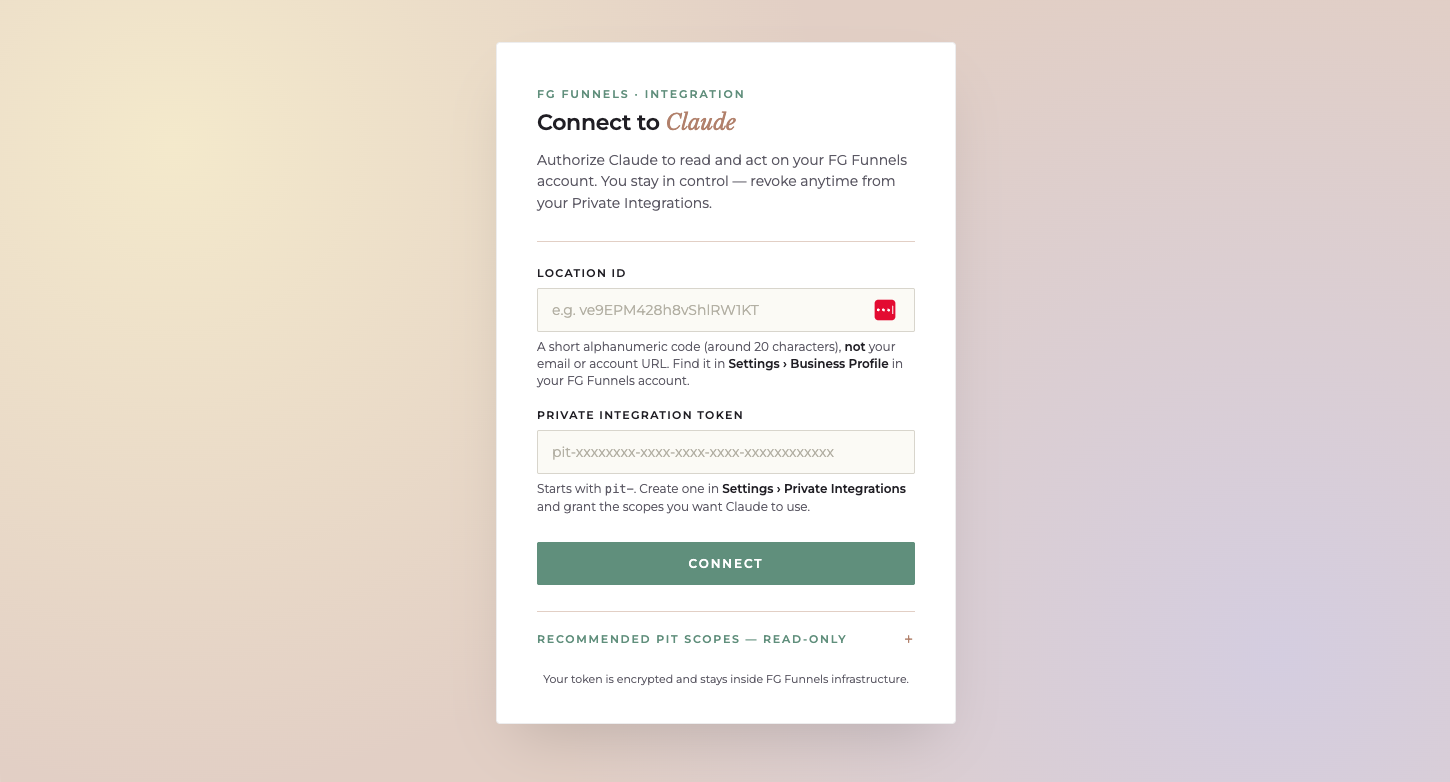
Claude confirms "Connected" — the FG Funnels tools are ready in your next chat.
Other MCP clients
Claude Desktop, Cursor and any client that supports remote MCP servers connect with the same URL —
https://mcp.fgfunnels.com. Setup steps vary by client; check its "custom server" docs.Connected! Claude shows the FG Funnels tools.
Connected
You're all set
Ask Claude in plain language. Tap a prompt to copy it and try it in a chat.
Limits & guardrails
Read onlywrite actions are refused — even if your token has write scopes.
One sub-accountlocked to the Location ID you entered at setup.
Validatedmalformed requests are rejected with a clear message, not bad data.
Revoke anytimedelete the integration in FG Funnels or remove the connector in Claude.
Troubleshooting
The token is missing at least one read scope, or the Location ID is wrong. Re-check both, and re-create the token if needed.
Refresh the connector: Settings → Connectors → click FG Funnels → Reconnect.
Some endpoints need specific filter formats. Share the error message with Claude and it will usually correct the query.
HighLevel adjusts which tools its MCP server exposes from time to time. Refresh the connector to pick up the current set.
Remove the connector in Claude, then add it again with the new Location ID.