Before you start
Two accounts, and two values you will create along the way.
You need
-
An FG Funnels account
Specifically, access to the location you want Claude to connect to.
-
A Claude.ai account
Free or paid both work. Any other MCP client is fine too, including Claude Desktop and Cursor.
You will create two values during setup
Your Location ID and a Private Integration Token (a PIT). You will paste both into the FG Funnels connection page during Step 3, never into a Claude conversation. Claude itself never sees your token.
Just want read-only access?
Use the standard connector instead. Same setup, smaller footprint, and it cannot change anything. Its address is https://mcp.fgfunnels.com with no /v2 on the end. Read the standard connector guide.
Find your Location ID
- Sign in to FG Funnels.
- Switch to the location you want Claude to connect to.
- Go to Settings Business Profile
-
Copy the Location ID.
It is a long string of letters and numbers, something like
abc123XYZ...
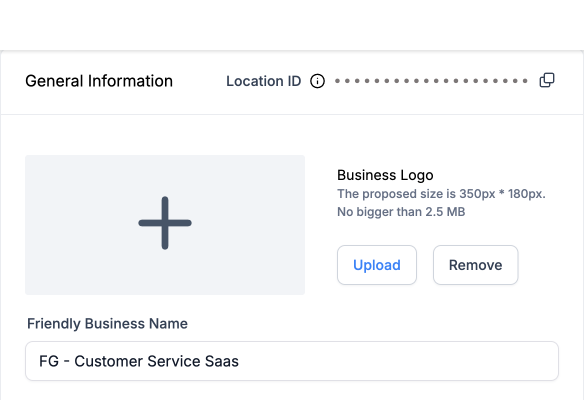
Keep this tab open
You will paste the Location ID in Step 3, and it is easier than finding it twice.
Create a Private Integration Token
The token is what actually grants access. Scopes are how you decide what Claude can see and change.
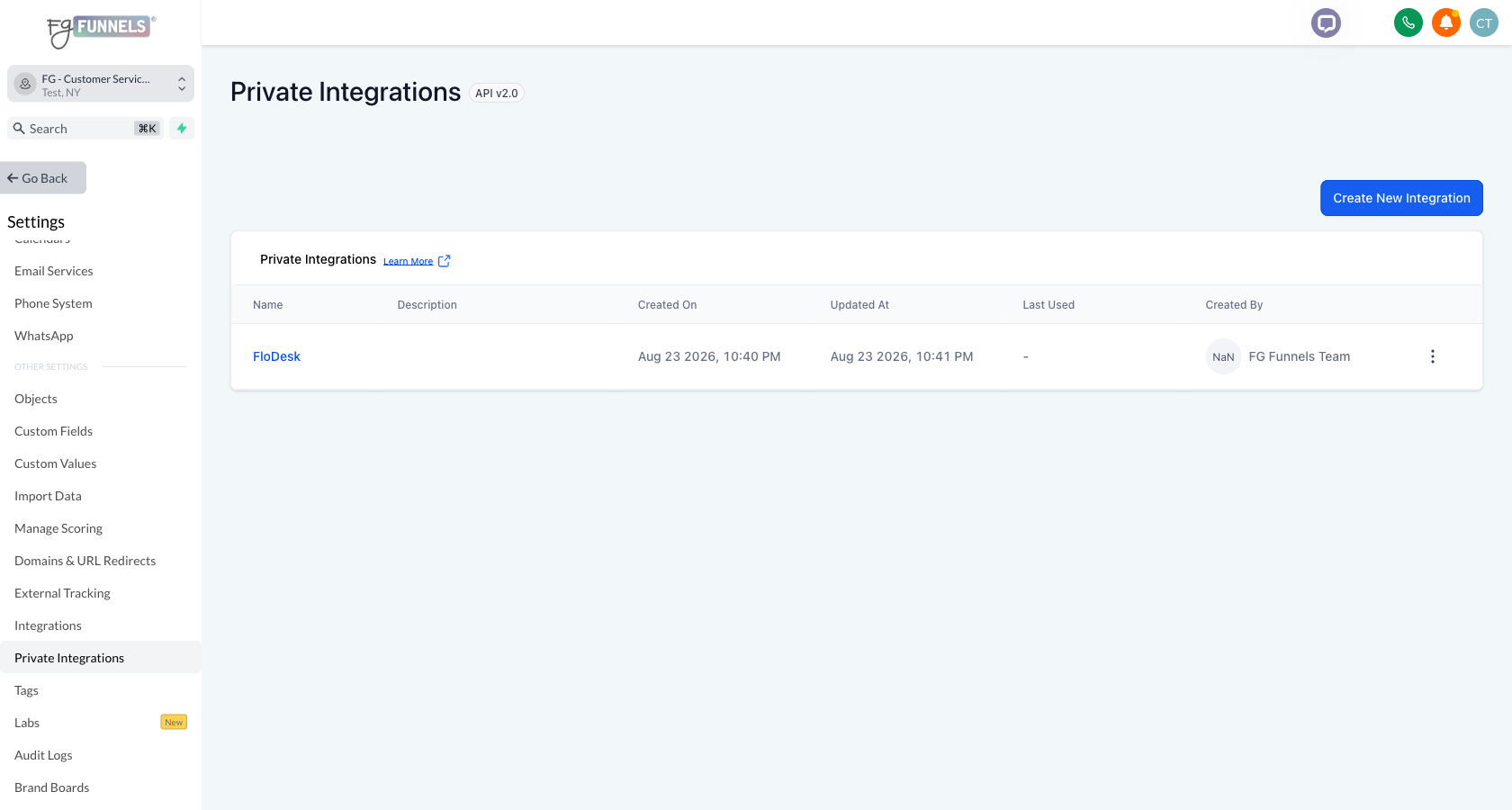
- Still in FG Funnels, go to Settings Private Integrations
- Click Create New Integration.
-
On the Basic info step, name it something you will recognise later, then click Next.
Claude, or Claude v2, is plenty. Only the name is required; the description is optional.
-
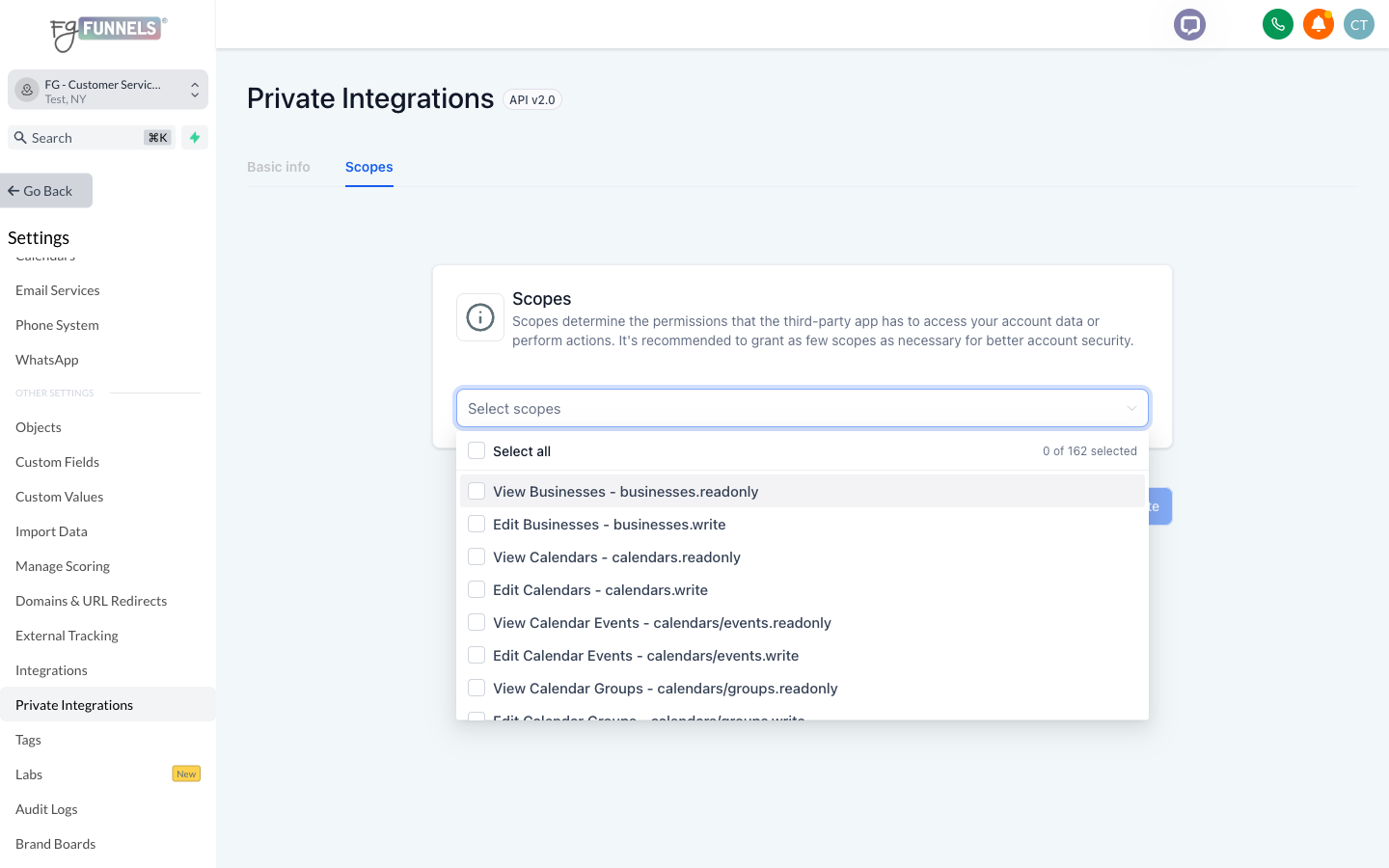
On the Scopes step, open Select scopes and tick what you want Claude to see and do.
There are 162 to choose from. Each is listed with a plain-English name beside the exact scope string, like "View Contacts – contacts.readonly", so you can find one either way. The four rules of thumb below will keep the list manageable.
-
Click Create, then copy the token. It starts with
pit-.You will not be able to see it again. Afterwards the integration's page shows it permanently masked, like
pit-b193****-****-****-****35d4, so park the full token somewhere safe until Step 3.
Rules of thumb for scopes
-
Grant the View scope for anything you want Claude to read
If Claude cannot see it, it cannot answer questions about it.
-
Grant the matching Edit scope for anything you want Claude to change
View on its own is read-only. This is the single most common reason a write appears to do nothing.
-
Grant only what you need
Skipping a category keeps it completely off-limits. You can always come back and add more.
-
Edit scopes are safe to grant
The connector still blocks deletes, money movement and account-level actions even when the scope says otherwise.
Common scopes
Search by area or by scope name. Click any scope to copy it.
No scopes match that search. Try a shorter word, like contact or invoice.
Want open and click rates?
Email performance needs two scopes together: emails/campaigns.readonly to list the campaigns, and emails/stats.readonly to read their numbers. One without the other will not give you a useful answer.
The full, always-current list
The connector's sign-in page at https://mcp.fgfunnels.com/v2 lists every available scope, grouped by area, with the exact name shown in your Private Integration settings. Treat that page as the authoritative reference. This table covers the common ones.
Add the connector in Claude
On claude.ai
- Open claude.ai and sign in.
- Click your profile, then Settings Connectors
- Click Add custom connector.
- Paste the URL above into the URL field.
- Click Connect.
-
A branded FG Funnels page opens, marked Expanded · v2. Paste your two values in.
Your Location ID from Step 1, and your Private Integration Token from Step 2.
- Click Connect again.
Claude confirms Connected, and the FG Funnels tools are available in your next chat. Not the current one, so start a fresh conversation.
It works on your phone too
Once the connector is set up, it carries over to the Claude app on iOS and Android the next time you sign in there. Handy for asking a quick question about your account when you are away from your desk.
Set it up on a computer though. Adding a connector from the mobile app is still in beta, so claude.ai or Claude Desktop is the reliable route.
Using Claude Desktop, Cursor, or something else?
The connector follows the standard MCP OAuth flow, so any MCP client that supports remote servers can connect with the same URL. The exact steps vary by client, so check your client's documentation for custom or remote MCP servers.
What Claude can create or update
With the matching Edit scope granted, Claude can make these changes directly from a conversation. Granting a scope makes something possible. Nothing happens until you ask for it.
- Contacts
- Create or update a contact, add tags, add notes, create, update and complete tasks, add a contact to a workflow or campaign, follow a contact.
- Opportunities
- Create or update an opportunity, change its stage or status, follow an opportunity.
- Conversations
- Send a message, start a conversation, update conversation and message status, add attachments.
- Calendars
- Create or update appointments, block time slots, create and update calendars, resources, groups, availability schedules and services.
- Create or update an email campaign, create or import an email template, schedule a campaign, create a template folder.
- Invoices and estimates
- Create or update an invoice, create an estimate, create an invoice schedule, create an invoice from an estimate.
- Products and store
- Create or update products, prices and product collections, update inventory, bulk-edit a set of product prices, manage shipping carriers, rates and zones.
- Payments
- Create a coupon, set up a payment provider integration. Not process a charge.
- Contracts and proposals
- Send a document or template for signature.
- Custom fields and values
- Create or update custom fields, custom field folders, custom values, tags and recurring tasks.
- Custom objects
- Create or update custom object schemas and records, create associations between records.
- Blogs
- Create or update a blog post.
- Social media
- Create or edit a post, manage the posting queue and schedule.
- Ad campaigns
- On Facebook, Google and LinkedIn: create, duplicate, pause and resume ad campaigns and ad sets, update audiences and pixels, publish campaigns.
- Knowledge base
- Create or update a knowledge base or FAQ entry, crawl and train a website's pages.
- Voice AI agents
- Create or update a voice AI agent and its actions.
- Chat widget
- Create, clone or update a chat widget.
- Businesses, users, brand boards, links, media folders
- Create or update records in each of these areas.
Always blocked, whatever you grant
Three categories are refused at the connector itself. Even a token scoped for them will be turned away. For any of these, work in FG Funnels directly.
Deleting anything
Contacts, opportunities, conversations, invoices, tasks, media, products, calendars, and everything else with a delete option. Bulk operations that delete under the hood are blocked too.
Money movement
Charging the wallet, recording a manual payment, voiding an invoice, sending an invoice or estimate, buying a phone number.
Account-level actions
Pausing or disabling your account, changing your subscription or rebilling, minting a new access token, attaching new external ad or marketing accounts via OAuth.
Things to ask it
Plain language works. Claude can chain several calls in one go, so it can find a contact, then update their tags and add a note, all in the same conversation.
Limits and guardrails
-
Reads plus safe writes, not read-only
Claude can create and update records wherever you granted the Edit scope. It cannot delete anything, move money, or touch account-level settings. Those are blocked at the connector whatever you grant.
-
Pinned to one location
The Location ID you entered during setup is the only one this connection can reach. To switch locations, disconnect and reconnect with a different Location ID.
-
Your token is encrypted
It is encrypted before it leaves FG Funnels infrastructure. No one, including FG Funnels staff, can read it after setup.
-
Revoke it any time
Delete the integration in FG Funnels under Settings, then Private Integrations. Or remove the connector on the Claude side. Either one cuts access immediately.
Troubleshooting
Tap a symptom to see the fix.
"Could not validate that PIT for this Location ID"
Either the token has no scopes granted at all, or the Location ID is wrong. Re-check both. If the Location ID is right and it still fails, delete the integration and create a fresh one.
It says connected, but Claude reports no tools available
Refresh the connector. In Claude, go to Settings, then Connectors, click FG Funnels, then Reconnect.
Claude says something is "not available through the FG Funnels connector"
That is the guard doing its job, not a bug. You asked for a delete, a money movement, or an account-level action, and the connector refuses all three by design.
Do that one in FG Funnels directly.
Claude hits a scope or authorization error
Your token is missing the scope for that specific action. Add it under Settings, then Private Integrations, then reconnect the connector in Claude so it picks up the change.
A write does not seem to have any effect
Check that your token has the Edit scope for that area, not just View. This is the most common cause by a wide margin.
The available tools shifted between refreshes
HighLevel adjusts which operations it exposes from time to time. Refresh the connector to pick up the current set.
I want to switch to a different sub-account
Remove the connector in Claude, then add it again with the new Location ID. A connection cannot be repointed in place.
I lost my Private Integration Token
Do not create a second integration. That leaves the first one live with its scopes still granted and nobody watching it. Open the existing one under Settings, then Private Integrations, and rotate its token instead.
If Claude is not connected yet, or the connection is already broken, choose Rotate and expire this token now. The old token stops working immediately and you get a replacement.
If Claude is connected and working, choose Rotate and expire this token later. You get the new token straight away while the old one keeps working for 7 days, so nothing breaks before you have reconnected.
Either way, reconnect in Claude with the new token once you have it.
Still stuck?
We would rather you ask than fight with it
If you hit something the troubleshooting list does not cover, reach out. Two things get it sorted fastest: a screenshot or short screen recording of the error, and what you were asking Claude to do at the time. That second one usually pinpoints it on its own, because a missing scope, a blocked action and a real bug all look much the same from the outside.